
ReviewStudio provides a framework for interacting with AI models during the process of content review.
Note: ReviewStudio AI is currently in a beta mode, if you are interested in activating and testing on your account, please reach out to support.
The key elements of this framework include the following key components:
AI Prompts
Creating Review prompts that produce consistent and reliable results often require a certain level of technical and domain expertise as well as considerable testing. To make it easier for non-technical reviewers to obtain reliable and consistent AI results, qualified admins predefine prompts that reviewers can then easily apply during their review process. Prompts can be specified for specific types of content and can also include files or websites to be used as reference documentation for running the prompt.
Review Canvas AI Interface
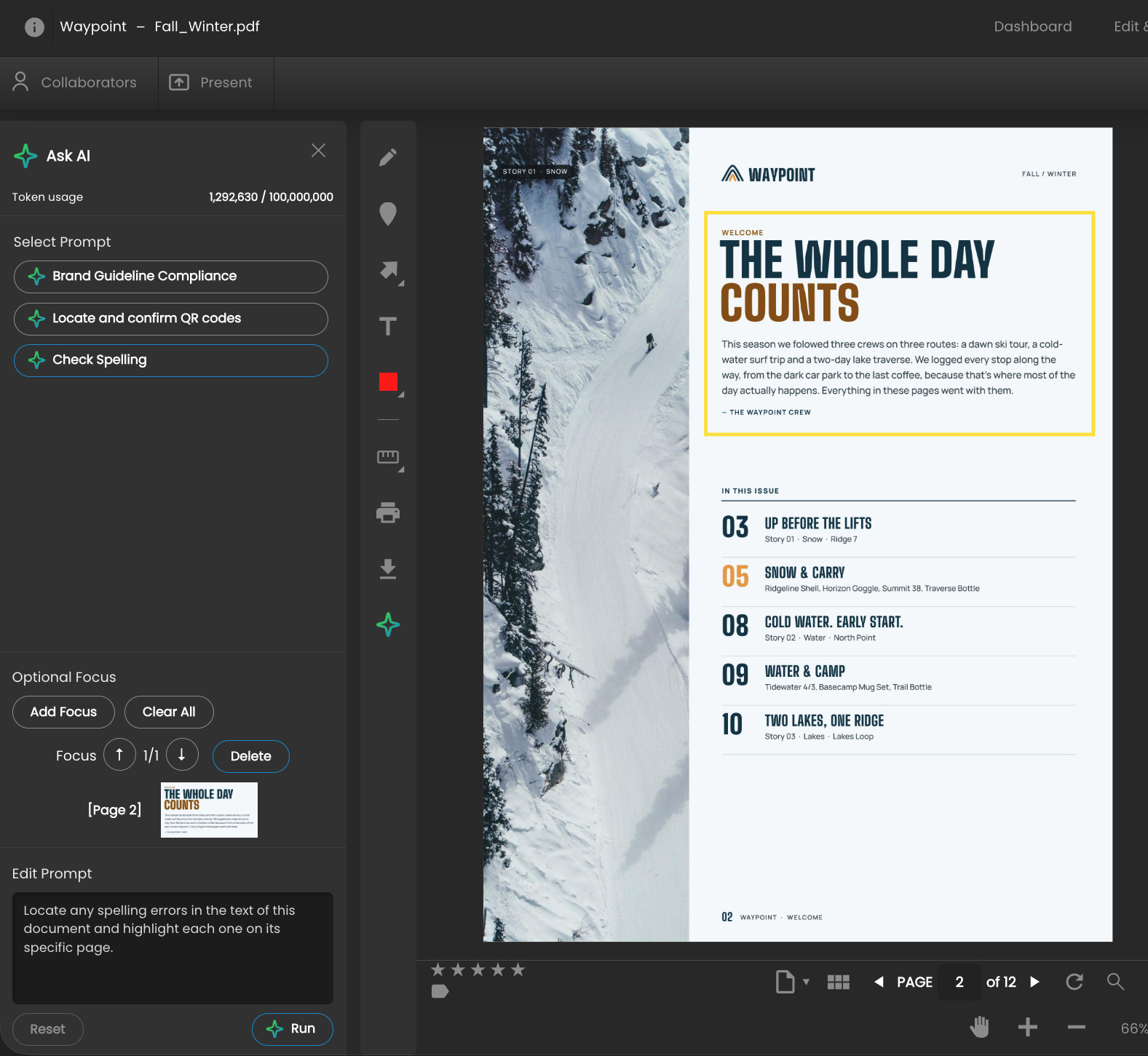
During the review process, reviewers can open the AI panel to access the AI tools. The panel provides a way to select from the list of predefined prompts that were created. In addition, a reviewer can opt to define one or more “focus regions” within the content, which would limit the running of the prompt only to those regions selected. Admins and Managers also have a prompt window in which they can enter arbitrary prompts or view and edit the full text of any predefined prompt selected (useful for testing).
Once a prompt runs, the response will be shown in the menu panel. If the response relates to specific elements in the file, those regions will be highlighted, and a control will allow the reviewer to cycle through the regions selected. For example, a prompt to find spelling errors would return a control that will highlight each error located. The responses that are provided can be added as comments in the comment bar where the reviewer can make edits prior to saving.
Model Specification
While the beta release will be initially limited to providing AI access through ReviewStudio’s Gemini account, customers will ultimately be required to obtain their own AI license to the model of their preference and to provide the API key needed to link it to their ReviewStudio account. In this way, customers will be able to incorporate models specifically developed for their particular use cases and to directly manage the costs involved in providing AI access. ReviewStudio will provide ongoing visibility to the token usage for specific queries as well as the overall token usage of the account (that can also be limited).
Managing Prompts
To Create a New Prompt:
-
Go to Setting > AI Prompts
-
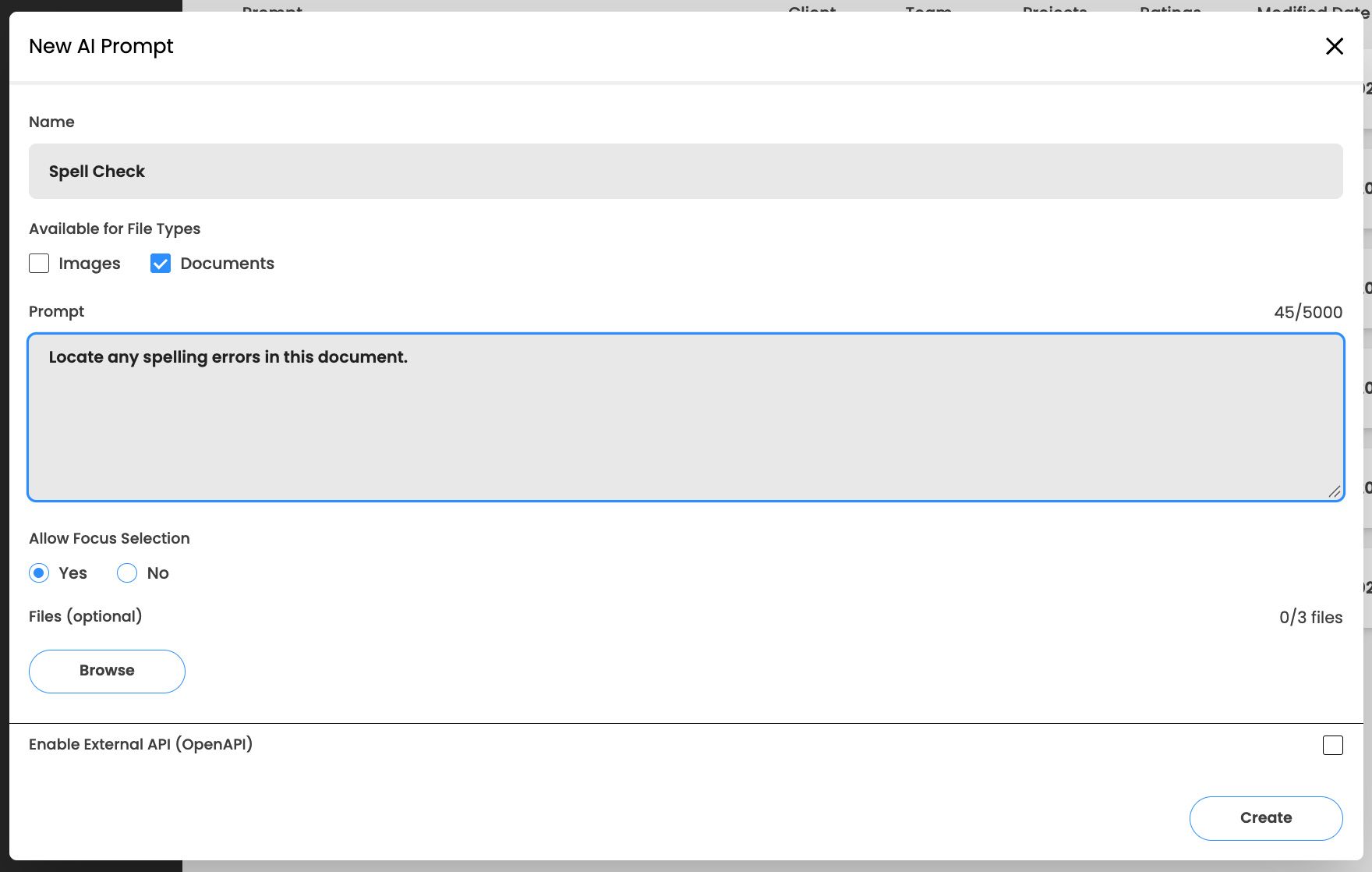
Click on “New”
-
Enter the name of the prompt – this name is all that will show in the Review Canvas so it should provide a good description of the goal of the prompt.
-
Check off which types of content the prompt should be visible for. Currently only images and documents are supported but additional content types including video and web pages will be added soon.
-
Provide the text of the prompt that will be sent to the AI model along with the content being reviewed. See AI Prompt Development – Tips and Examples.
-
Indicate if the prompt should support the definition of focus regions. If it’s active, users will be presented with the option to marquee specific regions of interest within the content being reviewed.
-
Upload any reference files that should be included with the prompt. For example, these can include documents such as brand guidelines or compliance regulations that need to be adhered to. Up to three files can be uploaded for each prompt.
To Manage Existing Prompts:
The AI Prompts menu (Settings > AI Prompts) provides a list of all the prompts that have been defined for your organization with actions that can be used to manage them.
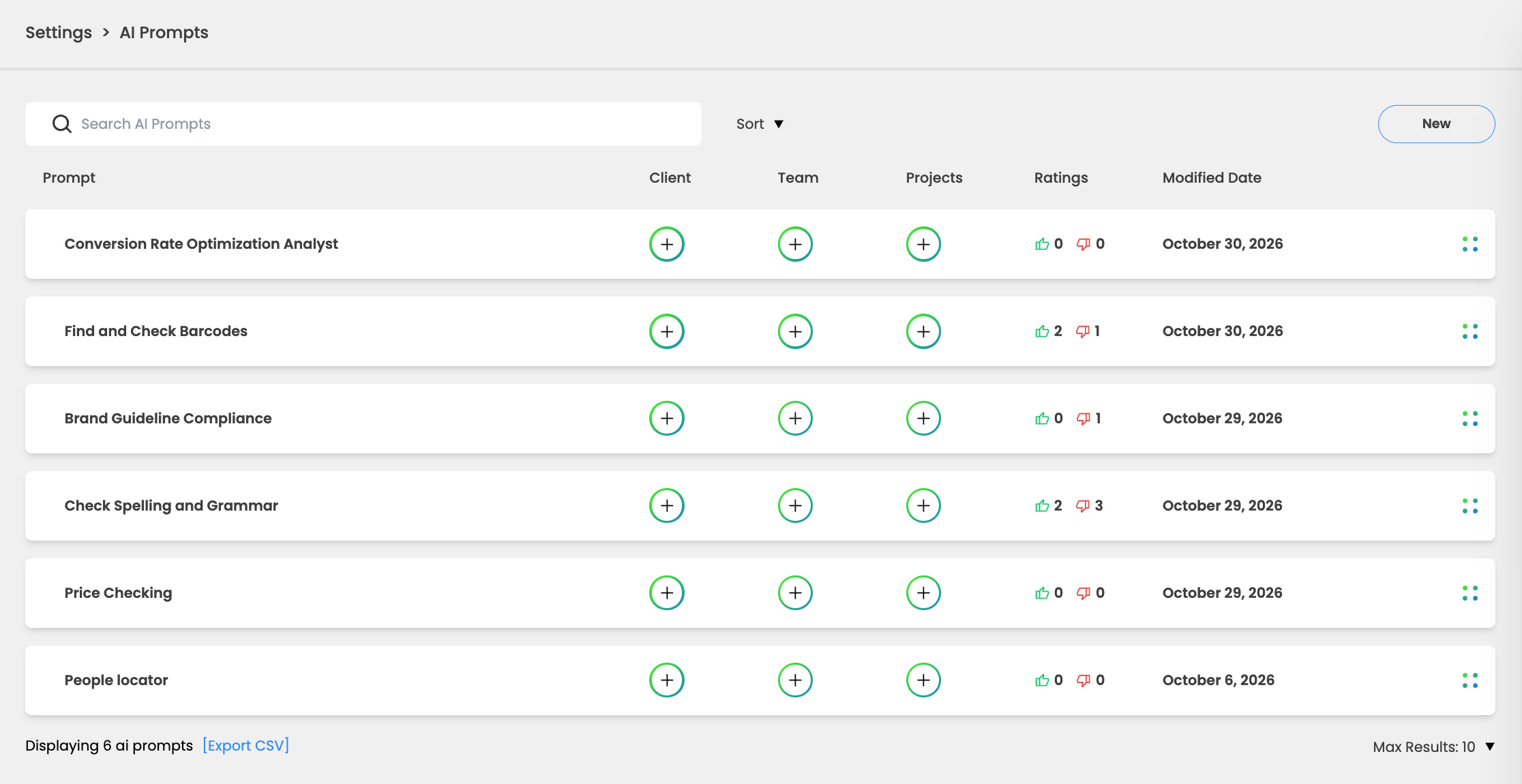
Select Client, Team or Projects to limit the availability of the prompt to the specific Client(s), Project(s) and Team(s).
When AI responses are provided in the Review Canvas, the user is presented with the option to add a rating indicating whether the response meets or does not meet their expectations. This feedback can be useful to the prompt creators to indicate if their prompt is working as expected or requires further refinement.
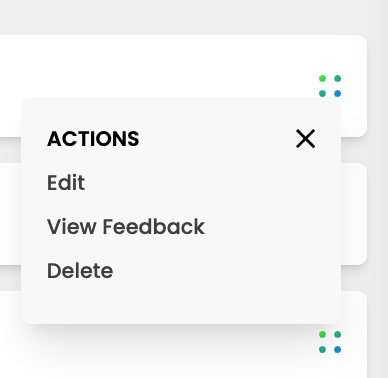
An action menu provides additional operations:
-
Edit – to modify the prompt or any of its properties.
-
View Feedback – displays any explanation that the user may have provided when making a negative rating.
-
Delete – deletes the prompt.
Using AI in the Review Canvas
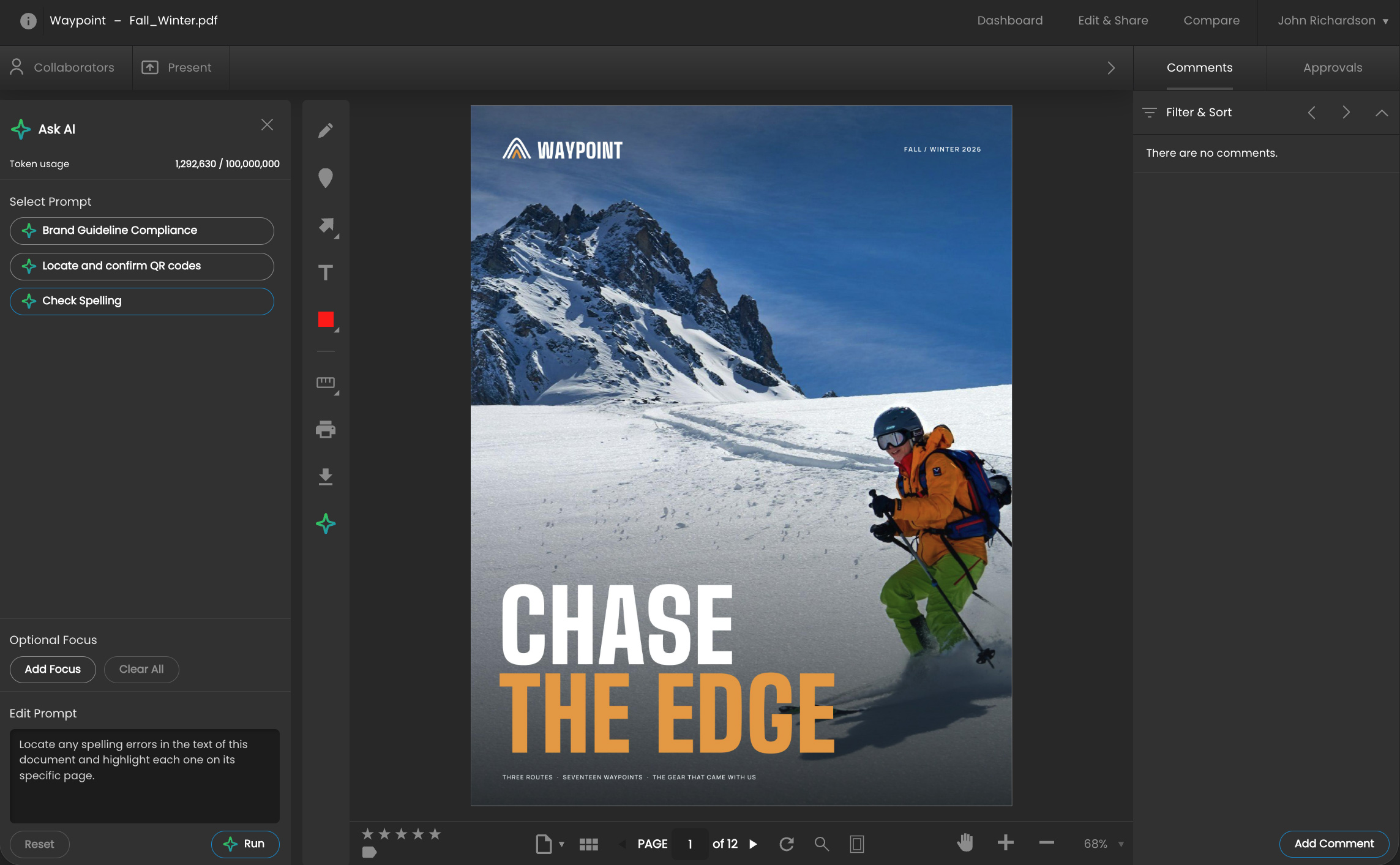
To access AI functionality while reviewing content, click on the AI icon at the bottom of the toolbar. This will open the AI menu panel.
Any prompts that have been defined for the file type being viewed will be displayed in the AI panel, and you can select the prompt that you wish to run.
Edit Prompts
If you are an Admin or Manager you will also be able to see and edit the text of the prompt in the “Edit Prompt” window at the bottom of the panel. If you are the prompt creator, this functionality will help you test and refine your prompts. But note that any changes you make here will not affect the original prompt. You also have the option of entering any new prompts that you may wish to develop and test.
Adding Focus
If the prompt supports the use of focus regions, you can click on the “Add Focus” button and then select one or more regions within the file. Any evaluation of the prompt by the AI will then be limited to considering the specific regions you select.
If you add multiple regions, you can cycle through them by using the up/down arrows in the Option Focus menu. You can also delete any focus region you wish to remove from the list.
Running a Prompt, Adding as Comments
Once you have selected your prompt and indicated any desired focus regions, select the “Run” button to run the prompt. Depending on the size of the file and the complexity of the prompt, it can take anywhere from a few seconds to many minutes for response to be provided.
When a response does appear, if it references specific items or regions within the file, these items or regions will be highlighted by an animated green marquee within the file. A menu will also be provided to let you cycle through the highlights and view each response in context.
If desired, any response provided can then be added to an annotated comment in the comment bar by selecting the “Add as Comment” button.
If you are pleased with the response you receive from AI, you can rate the response with the thumbs up or down. If you rate “thumbs down” you can also provide an explanation of what went wrong. The rating and any information you provide will provide helpful feedback to the prompt editors for making any necessary improvements to the prompt.