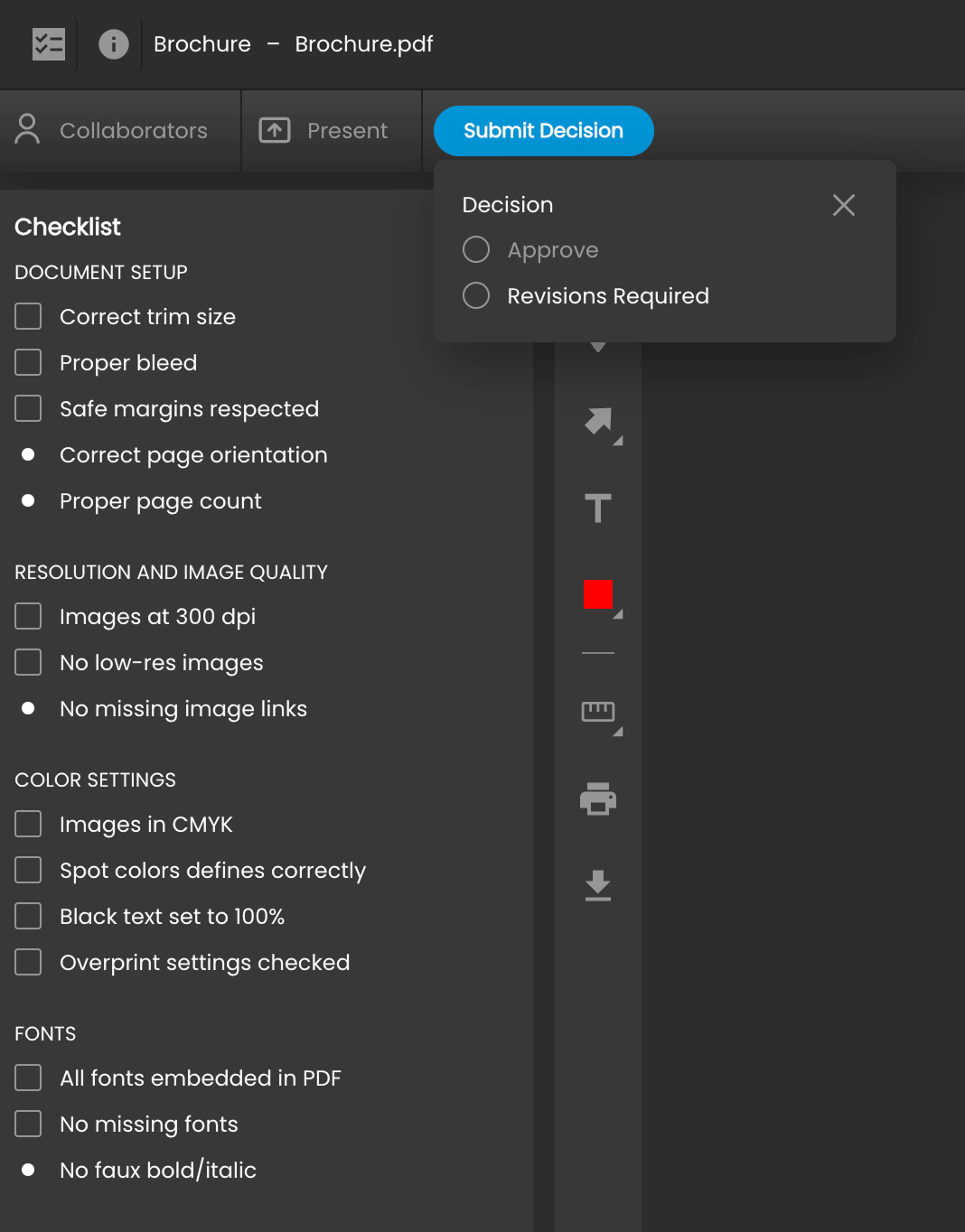
Checklists provide a way of presenting reviewers with a more specific and structured list of issues that they should consider when reviewing a file. A checklist may consist of “required” items that must be individually checked when approving a document, and “optional” items that can provide guidance but do not have to be checked for approval.
Note that this feature is available to Advanced Plans and above.
If a Review is assigned to a checklist, that checklist will be displayed to approvers in a sidebar menu each time a file is opened. Before the approver can approve the file, they will have to check each required item in the checklist to confirm it has been considered.
.png?cb=6c96307207e8faa66a6822d1a44addd8)
A checklist can be partially completed (with some requirements not checked) when indicating that revisions are required. The state of an incomplete checklist will be remembered between review sessions, so reviewers need not reconsider issues already addressed. The status of the checklists will also be included with any approval decision and displayed in the approval tab of the comment bar.
An admin or manager can create any number of checklists for the organization so that different checklists can be used for different types of reviews or workflows. After a checklist is defined, it can be applied to a Review along with other Review settings. It is possible to change or remove a checklist on a Review at any time but note that the approval menu will continue to show the checklist that was used at the time the decision was made.
To Create or Edit a Checklist:
-
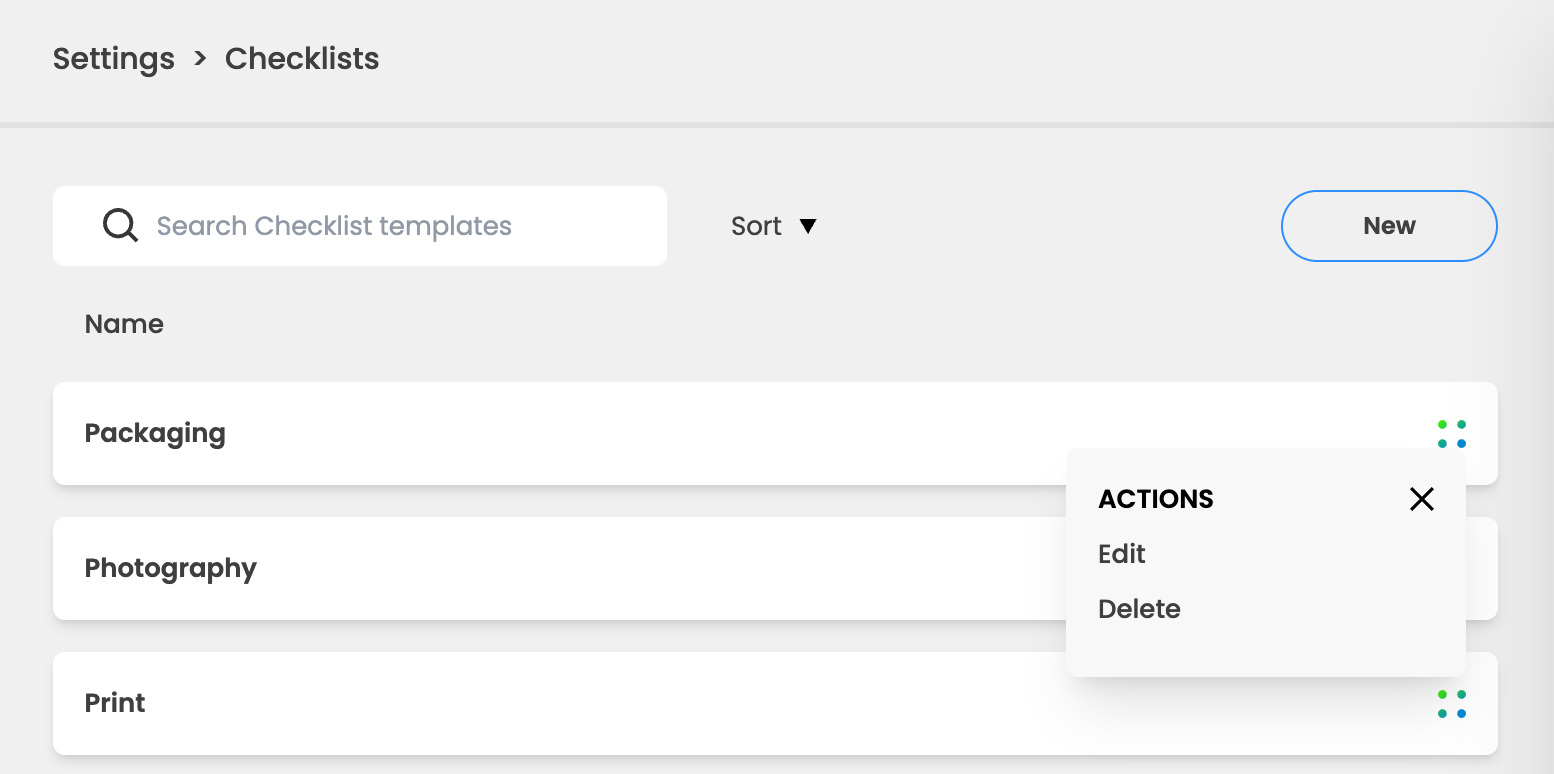
Go to Settings > Checklist. This page will display a list of all existing checklists.
-
From the action menu on a checklist, you can select to edit or delete it.
-
To create a new checklist, Select the New button at the top of the page.
-
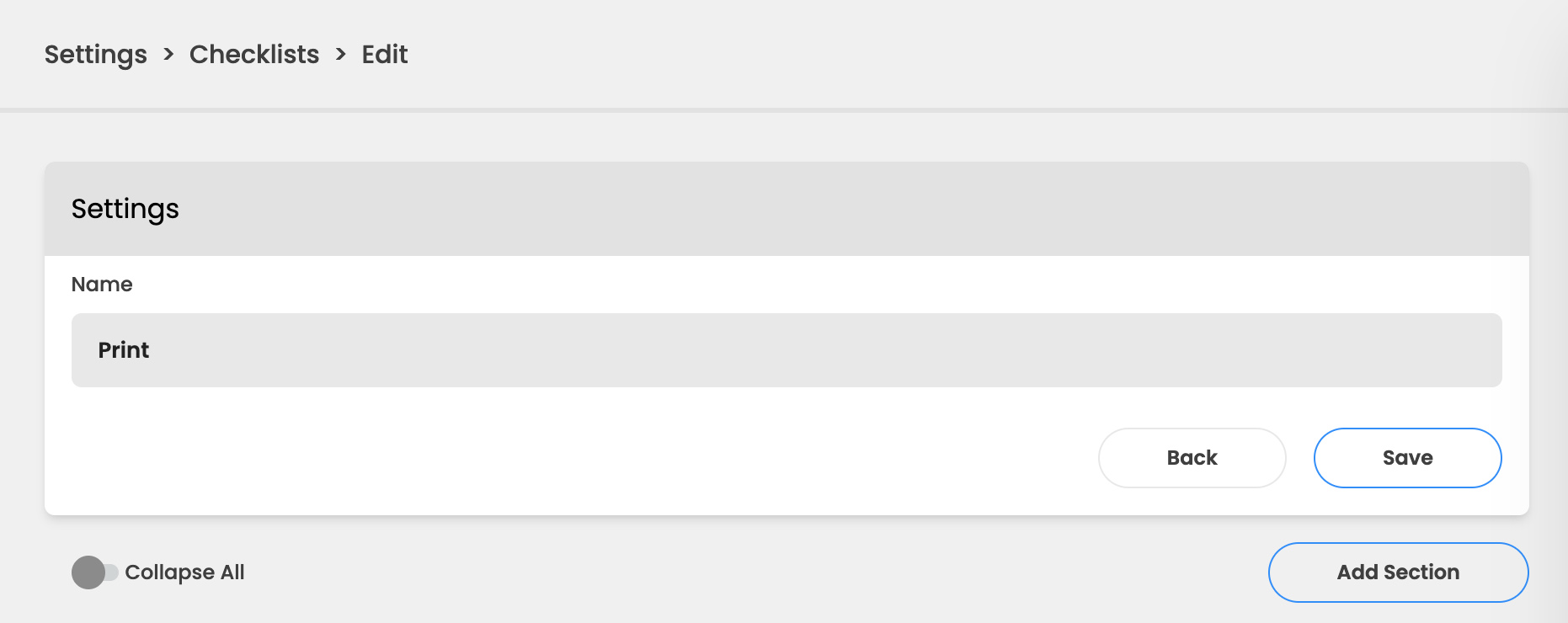
A checklist may contain multiple sections, each of which can have a header, description, and a list of required or optional items. To begin, enter the name of the checklist and click Save.
-
Click Add Section to create the first section of the checklist.
-
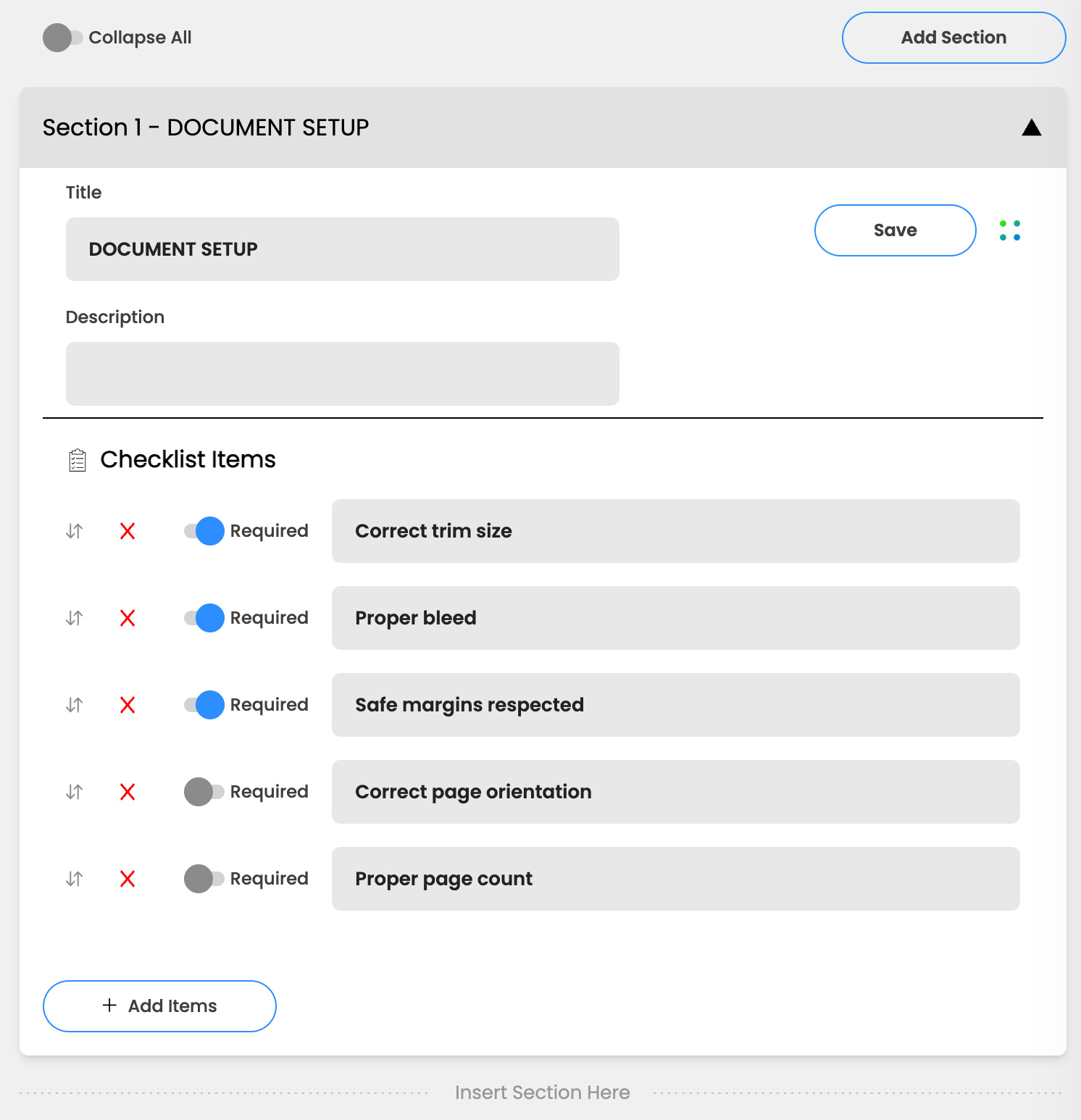
Enter the name of the section and an optional description if desired.
-
Click Add Items for each checklist item you want to present in this section. Then select if the item is a “Required” item.
-
Repeat for additional items you want to present in this section. You can re-order the items in the checklist by drag and dropping the arrows to the left of the item. You can also delete an item by selecting the red x.
-
Once the section is completed, click Save.
-
You can add additional sections by clicking the Add Section button again, or you can insert a section between two existing sections by clicking on the Insert Section Here.
Using Checklists in Reviews
Once you have defined a checklist, you have the option of applying it to a Review by selecting it from the checklist dropdown in the Review settings menu. The checklist will automatically be displayed in the Review Canvas sidebar to all approvers and for all files. The approver will have to check off each required item in the checklist before they will be able to provide a final approval action on the file (it is possible to select revisions required with a partially complete checklist). The status of the checklist will also be displayed in the approval tab of the comment bar, along with any associated decision taken.