
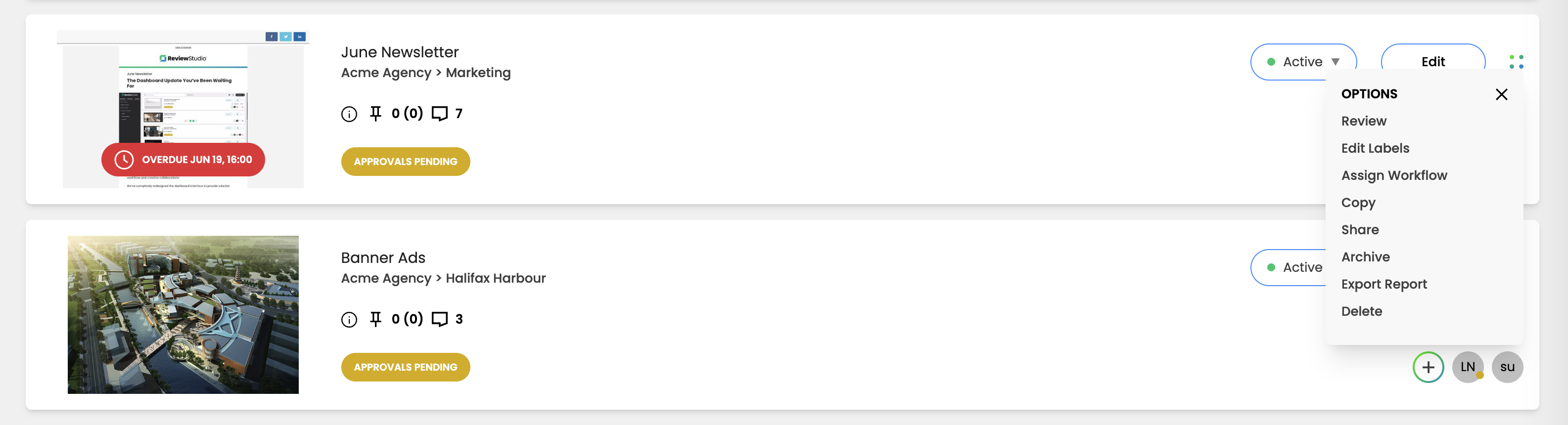
To archive a Review, find the Review card in your Dashboard and click the 4-dot icon. Choose “Archive” from the drop-down menu.
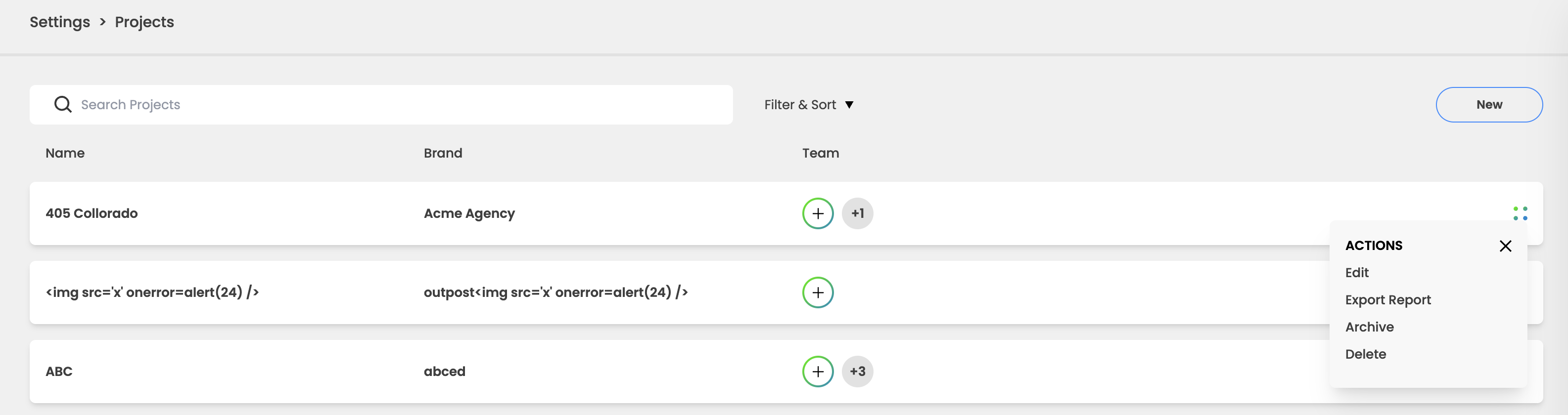
To archive a Project, navigate to Settings > Projects in your Dashboard. Find the Project you wish to archive and click the 4-dot icon on the right-hand side. Choose “Archive” from the drop-down menu.
Viewing Archived Reviews or Projects
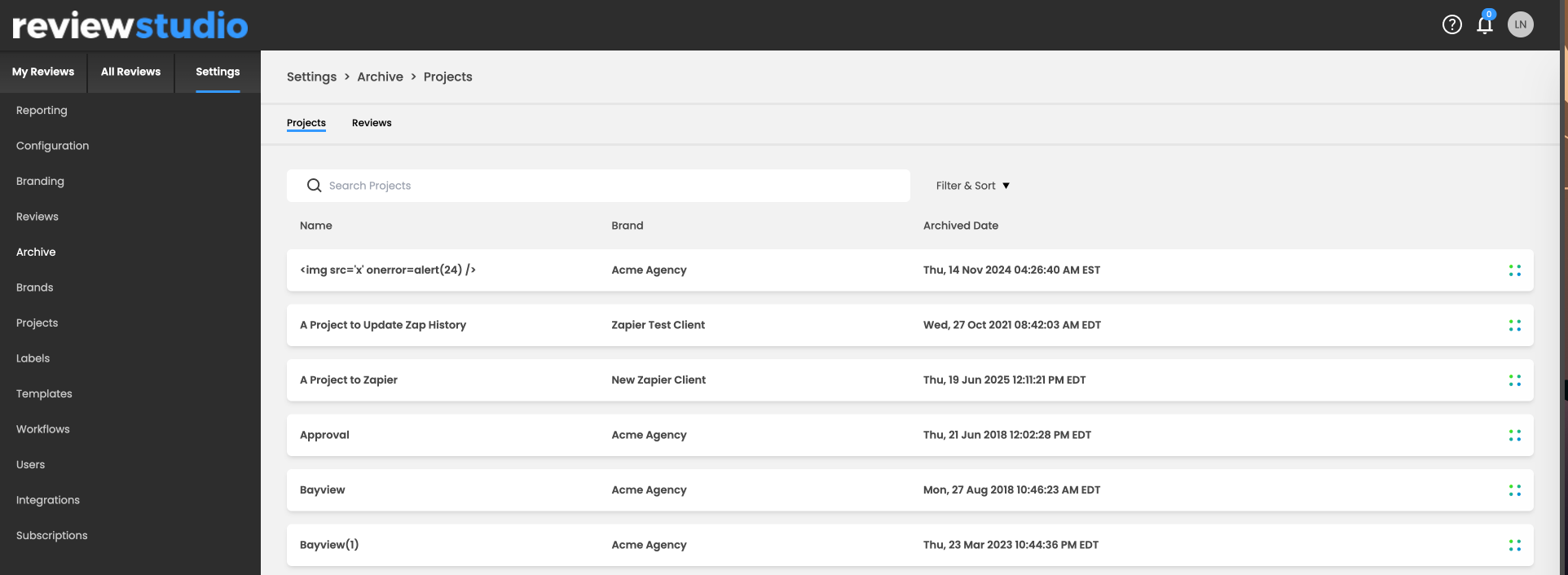
Archiving has its own page in your Settings (from the Dashboard). This is where you can search for archived Reviews and Projects.
Under Settings > Archive, you will have the option to view either archived Projects or archived Reviews. To view archived Reviews, simply choose the Reviews option in Settings > Archive. Archived Reviews will display the Review name, applied categorizations, and the archival date.
To Restore Archived Projects
From Settings > Archive, under the Projects tab, find the Project you want to restore. Click the 4-dot icon at the right. Choose “Restore”. You should see a notification indicating that the Project was successfully restored.
If you restore an archived Project, it will also restore all Reviews archived within it.
To Restore Archived Reviews
From Settings > Archive, under the Reviews tab, find the Review you want to restore. Click the 4-dot icon at the right. Choose “Restore”. You should see a notification indicating that the Review was successfully restored.
Note that when you restore a Review in an archived Project, the Project will also be restored.
You also have the option to permanently delete archived items.